
How to Fix "There Has Been a Critical Error on This Website" in WordPress

You open your website and instead of your homepage there is a plain white box with one line in it: "There has been a critical error on this website." No menu, no logo, sometimes no way into the dashboard either.
It looks bad, but in most cases nothing is lost. Your pages, posts, images and orders are still sitting in the database. Something in the code that runs your site has crashed, and WordPress is hiding the technical details from visitors. This guide shows how to find what crashed and switch it off, with screenshots from a test site we broke on purpose.
Key takeaways
- The message means PHP hit a fatal error. Your content is almost always safe.
- WordPress emails the site admin a recovery link. Check that inbox (and spam) first.
- Turning on the debug log shows the exact file that crashed, which usually names the plugin or theme.
- Renaming that plugin's folder switches it off and brings the site back.
- The most common causes are a plugin or theme update, an old plugin on a newer PHP version, and running out of memory.
In this post
What the critical error actually means
WordPress is written in PHP. When a plugin, a theme or WordPress itself calls something that does not exist, or runs out of memory, PHP stops with a "fatal error". Before WordPress 5.2 that usually meant a blank white page, the famous "white screen of death". Since 5.2, WordPress catches the crash and shows this message instead.
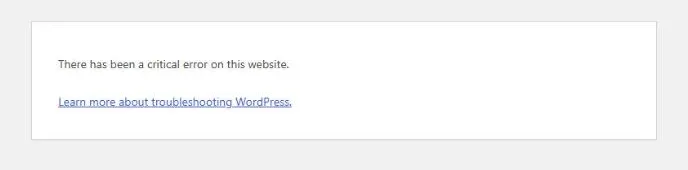
The message is deliberately vague, because the real error can reveal file paths on your server. The useful details are hidden, not gone. The next two steps show you where to find them.
Did it start right after you clicked Update? Then you already know the likely cause. If you took a backup first, restoring it is the fastest fix. If you did not, carry on below. Our post on updating WordPress safely covers the routine that prevents this.
Step 1: Check the admin email for a recovery link
When WordPress catches a fatal error, it sends an email to the site's admin address (the one under Settings › General). The subject line says your site is experiencing a technical issue, and the email names the plugin or theme that caused it.
At the bottom is a recovery mode link. It logs you into the dashboard with the faulty plugin paused for you only, so you can deactivate it, update it or replace it while visitors still see the error. The link works for one day. If the error keeps happening, WordPress sends a fresh one.
Two things often get in the way: the email lands in spam, or the site cannot send email at all. That second problem is common enough that we wrote a separate guide on WordPress not sending emails. If no email arrives, go to step 2.
Step 2: Turn on the debug log to see the real error
You need access to your site's files for this, through your hosting control panel's File Manager (cPanel, hPanel, Plesk and so on) or an FTP app.
- Open
wp-config.phpin the main WordPress folder, usuallypublic_html. Take a copy of it before you edit anything. - Find the line
define( 'WP_DEBUG', false );and replace it with these three lines:define( 'WP_DEBUG', true );define( 'WP_DEBUG_LOG', true );define( 'WP_DEBUG_DISPLAY', false ); - Save, then reload the broken page once so the error happens again.
- Open
wp-content/debug.log. The last "PHP Fatal error" line is the one you want.
Setting WP_DEBUG_DISPLAY to false keeps the error out of the page, so visitors do not see your server paths. On our test site we turned display on so you can see what the message looks like:

You do not need to understand the whole message. Look for the path. If it contains wp-content/plugins/something/, that plugin crashed. If it contains wp-content/themes/something/, it is your theme.
Switch debugging off when you are done. Set WP_DEBUG back to false and delete debug.log. Left on, the log keeps growing and can expose details about your site to anyone who finds it.
Step 3: Switch off the plugin or theme that crashed
If you can reach the dashboard through the recovery link, deactivate the plugin under Plugins. If you cannot log in at all, do it from the file side:
- Go to
wp-content/plugins/in File Manager or FTP. - Rename the plugin's folder, for example
old-gallerytoold-gallery-off. WordPress can no longer find it, so it stops loading it. - Reload your site. It should be back. When you next open the Plugins screen, WordPress confirms it switched the plugin off.
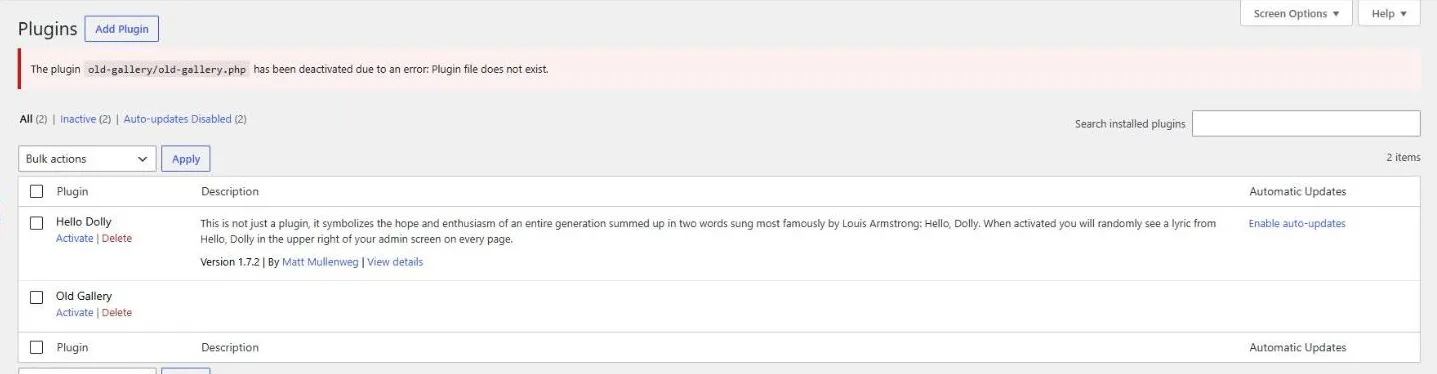
If the error pointed at your theme, rename the theme's folder in wp-content/themes/ instead. WordPress falls back to one of its default "Twenty" themes, as long as one is still installed. Your site will look different until the theme is fixed, but it will be up.
Not sure which plugin it is and no log? Rename the whole plugins folder to plugins-off. If the site comes back, rename it back, then switch plugins off one at a time until the error returns. Slow, but it always finds the culprit.
Once the site is up, decide what to do with the plugin: update it if there is a newer version, swap it for a maintained alternative, or delete it if you no longer need it. Do not just turn it back on.
The causes we see most often
| What the log says | What it usually means | Fix |
|---|---|---|
| Call to undefined function | An old plugin or theme uses PHP code removed in newer PHP versions, often right after the host upgraded PHP. | Update or replace the plugin. See our PHP version guide. |
| Allowed memory size exhausted | The site ran out of PHP memory, common with page builders and WooCommerce. | Raise the memory limit with your host, or add define( 'WP_MEMORY_LIMIT', '256M' ); to wp-config.php. |
| Cannot redeclare function | Two plugins (or a plugin and the theme) define the same thing, often a duplicate or an old copy left behind. | Remove the duplicate. |
| Class not found or failed opening required file | An update did not finish, so files are missing. | Reinstall that plugin or theme fresh from its source. |
| Syntax error, unexpected | Someone edited a theme file (often functions.php) and left a typo. | Undo the edit or restore that file from a backup. |
How to stop it happening again
- Take a backup before every round of updates, and know how to restore it.
- Update one plugin at a time on important sites, so you know which one caused a problem.
- Test big updates on a staging copy first.
- Remove plugins you no longer use. Every plugin is code that can break.
- Keep PHP on a supported version, and check plugins work on it before your host switches.
- Make sure the admin email address is one somebody actually reads.
This is the routine our website maintenance plans follow, from $10 a month (₹1,500 in India). If your site is showing the critical error right now and you would rather not touch wp-config.php, send us your site address and we will tell you what crashed and what it takes to fix it.
Questions we get asked
Will the critical error delete my website content?
No. The error stops the page from loading, but your pages, posts, images and orders are stored in the database and uploads folder, which the crash does not touch. Once the faulty plugin or theme is switched off, the content shows again.
Why did I not get the recovery mode email?
Either it went to spam, it went to an old admin address under Settings > General, or your site cannot send email. Many sites cannot send email reliably until an SMTP plugin is set up. In that case use the debug log and rename the plugin folder instead.
Can I fix the critical error without FTP or hosting access?
Only through the recovery mode link in the admin email. Without that link or access to the files, the person who controls the hosting account has to make the change. If a previous developer holds the hosting login, ask for access first.
Is the critical error a sign my site has been hacked?
Usually not. It is almost always a plugin, theme or PHP version problem. If the debug log points at a file you do not recognise, or code you did not add, have the site checked for malware before you restore it.
The error only shows on one page. Is it the same problem?
Yes. A plugin that only runs on certain pages, such as a form, gallery or shop page, crashes only there. The steps are the same: check the debug log after loading that page, then switch off the plugin it names.


