
Phone Storage Full? How I Fixed It for Good with One Payment

Affiliate disclosure: this post contains affiliate links. If you buy pCloud through them, I earn a commission at no extra cost to you. I only recommend it because I have paid for it with my own money and used it every day since Black Friday 2021.
"Storage almost full." If you have seen that warning on your phone this year, you know the routine. Delete a few videos, clear WhatsApp media, move photos to the laptop, and a month later the warning is back. Then the laptop fills up too.
I have been there, and in my job it gets worse. I build websites and do SEO for businesses, and clients send me everything: logos, product photos, shop videos, old website backups, folders of 3,000 images for an online store. All of it has to live somewhere safe.
In Black Friday 2021 I bought the pCloud 500 GB lifetime plan, paid once, and it fixed that problem for me. I have upgraded my storage as my client work grew, I have had friends buy it for the same "storage full" problem, and five years on it is still the tool I recommend first. Right now pCloud has its lifetime plans at the Black Friday price, so if storage is your problem too, this is the time to fix it once. Here is how I actually use it, who it suits, and which plan to pick before the sale ends.
Key takeaways
- pCloud lifetime plans are a one-time payment. Until the Black Friday sale ends, the price is $159 for 500 GB, $379 for 2 TB and $1,099 for 10 TB.
- Automatic Upload backs up your phone photos and videos, so you can free up space on the phone without losing anything.
- On a computer, pCloud Drive shows your cloud as a normal drive, so big folders do not have to sit on your hard disk.
- Every website I manage has several backups. I keep a copy of the important ones in pCloud, away from the hosting server.
- "Request files" gives clients an upload link, which is how I collect thousands of product photos without email or WhatsApp.
- pCloud Encryption (zero-knowledge, client-side) is not included in the single plans. It comes in the 3in1 Bundle at $579 with 3 TB and pCloud Pass Premium.
- There is a 14-day money-back guarantee, so you can try it with your own files first.
In this post
- Why I bought pCloud in 2021
- Use case 1: Phone storage full
- Use case 2: Thousands of client files
- Use case 3: Several backups of every website
- Use case 4: Computer backup and sync
- Use case 5: Private business data
- Use case 6: Family and friends
- Lifetime plans and prices
- Lifetime vs monthly: the maths
- What to know before you buy
Why I bought pCloud in 2021
Before pCloud, my files were spread across a phone, a laptop, two external hard drives and a free cloud account that was always full. Every new client project meant hunting for space. External drives also fail, and I did not want a client's only copy of their product photos sitting on one of them.
I did not want another monthly bill either. I already pay for hosting, domains, plugins and tools every month. pCloud's lifetime plan was a one-time payment, and Black Friday is usually when it is cheapest, so I bought the 500 GB lifetime plan and started moving everything in. Five years later I have never paid a renewal, and the files I uploaded in 2021 are still there.
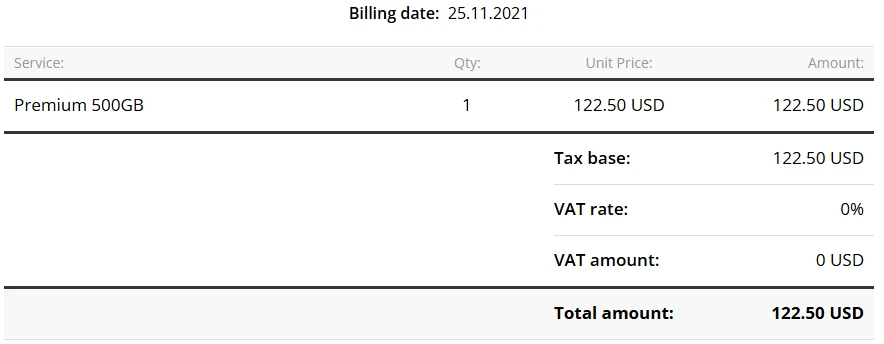
I paid $122.50 for the 500 GB lifetime plan on Black Friday 2021. Spread over the five years since, that is about $24.50 a year, and the number keeps dropping every year I use it. The same plan is $159 this Black Friday. That is a little more than I paid, but it is still a decent price: the regular price is $279, it is a one-time payment, and after five years of daily use pCloud has been more reliable for me than any alternative I tried. The lifetime part is what makes it worth it.
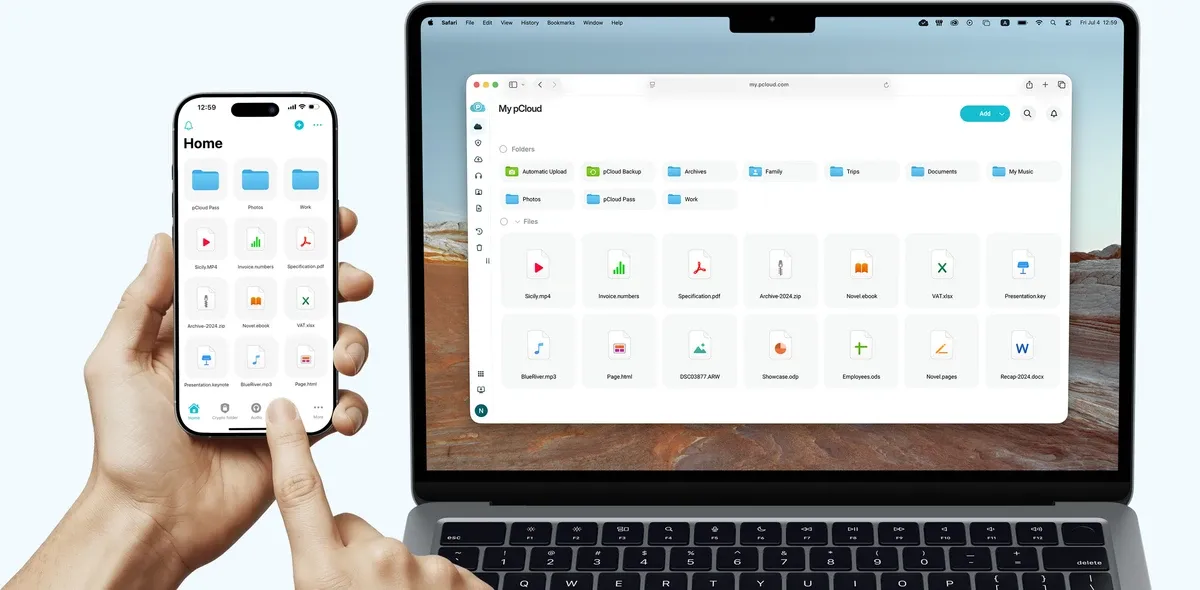
Use case 1: Your phone storage is full
This is the reason most of my friends bought it. Photos and videos are what fill a phone, and 4K video fills it fast. A few holidays, a wedding and a year of WhatsApp forwards, and a 128 GB phone is done.
pCloud's Automatic Upload fixes this. Turn it on in the app, choose photos and videos, and every new picture is copied to your pCloud. On Android you can also pick other media folders, such as Downloads and Screenshots. Once your photos are safely in pCloud, you can delete them from the phone and get your space back.
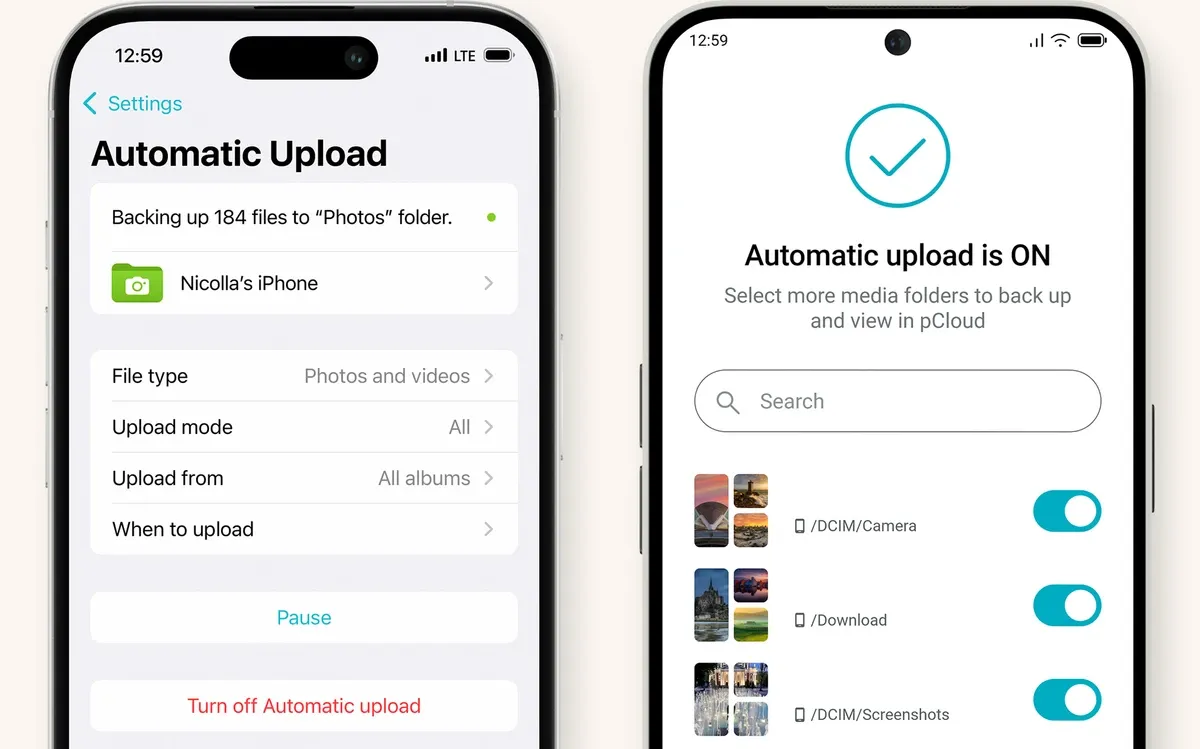
- Install the pCloud app on your phone and sign in.
- Turn on Automatic Upload and choose photos and videos. On Android, pick any extra folders you want backed up.
- Let it finish the first upload on Wi-Fi. The first run is the big one; after that it only uploads new photos.
- Check a few photos open in pCloud, then delete the originals from your phone to free up space.
It also means a lost or broken phone is no longer a lost photo library. Your pictures are in pCloud, ready on the new phone.
Use case 2: Thousands of client files (my daily use)
This is where pCloud earns its money for me. As a web developer, a single online store project can mean thousands of product photos and a few dozen product videos. A business website brings shop photos, team photos, brochures, logos in five formats and a backup of the old site. Keep all that on a laptop and the disk is full by the third project.
Getting those files from the client used to be the hard part. Email has attachment limits, WhatsApp compresses photos, and a pen drive needs a meeting. Now I use pCloud's Request files. I right-click a folder, create an upload link and send it to the client. They upload straight into that folder from their browser, without making an account, and I get the files at full quality.
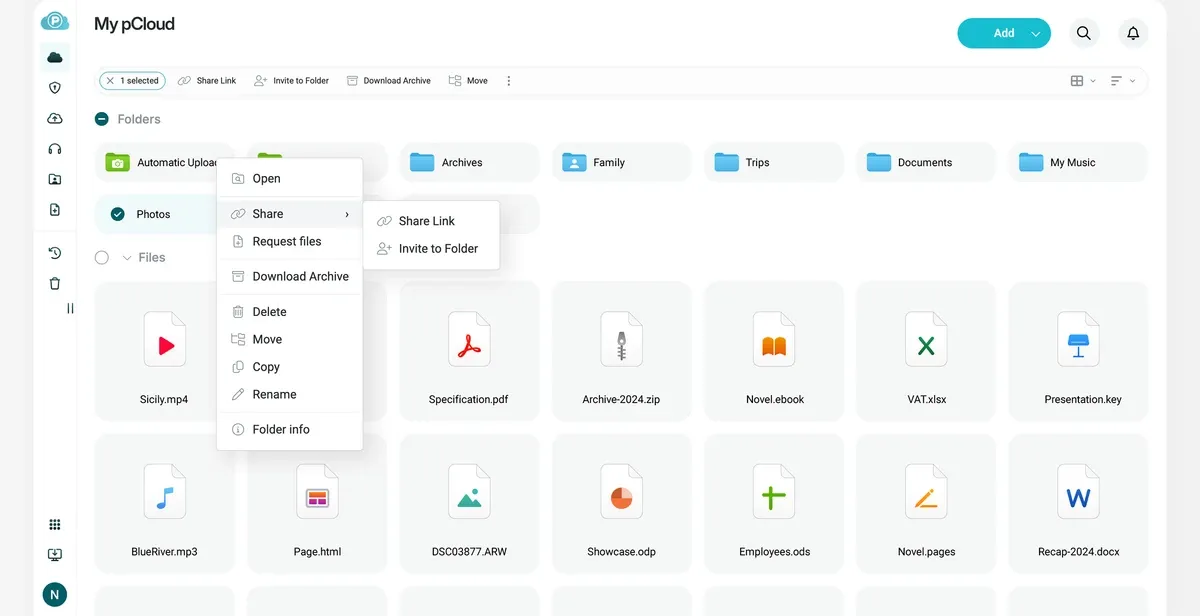
It works the other way too. When a site is finished, I share a download link with the client for their final images, logo files and website backup, so they always have their own copy. That matters: one of the first things I tell business owners is to keep their own copy of everything, so they are never stuck if a developer disappears.
If you build or design websites too, I wrote a separate guide on how web designers and developers can use pCloud for client files, deliverables and backups.
Each plan includes a monthly allowance of shared link traffic, which is the data people download through your links. On the 500 GB plan it is 1,000 GB a month, which has been far more than I need.
Use case 3: Several backups of every website
Every website I look after has more than one backup, and none of them is small. There are the regular daily or weekly backups, a full backup before every update or change, and another full backup before any redesign or move to a new host. A full backup means every file plus the database, and for an online store with thousands of product photos that can easily run to several gigabytes. Multiply that by every client site, and keep a few versions of each, and it adds up fast.
Most of those backups sit with the hosting, which is fine until the problem is the hosting itself: the server fails, the account is suspended, or a hacked site has also infected its own backups. So I keep a copy of the important ones off the server, in pCloud, organised in one folder per client. If a host lets us down, there is still a clean copy to restore from somewhere else.
- Before every update or change: a fresh full backup, so there is always a way back.
- Before a redesign or host move: a full copy of the old site, kept long after the new one is live.
- A copy off the server: the important backups also live in pCloud, away from the hosting account.
Automatic WordPress backups to pCloud
On WordPress sites this copy is automatic. We use UpdraftPlus for scheduled backups, and its paid version can send them straight to pCloud as remote storage. You can see how we take a full UpdraftPlus backup before every change in how we update WordPress without breaking your site. Every scheduled backup lands in pCloud without anyone having to remember to download it.
pCloud also has its own free plugin, pCloud WP Backup, on wordpress.org. You connect your pCloud account, pick a backup schedule, and it saves your site's backups to your pCloud on that schedule. If you run your own WordPress site and do not want a paid backup plugin, it is a simple way to get an off-server copy.
You do not need to be a developer for this to matter. If you own a website, ask whoever manages it where your backups are kept and whether any copy lives away from the server. If the answer is "only on the hosting", a cloud folder you control is a cheap fix.
Use case 4: Back up and sync your computer
On Windows and Mac, the pCloud Drive app adds your cloud as a drive, just like a pen drive or a second hard disk. You open, save and drag files there as normal, but they live in the cloud and do not fill your laptop. That is how I keep years of client projects "on" a laptop with a modest SSD.
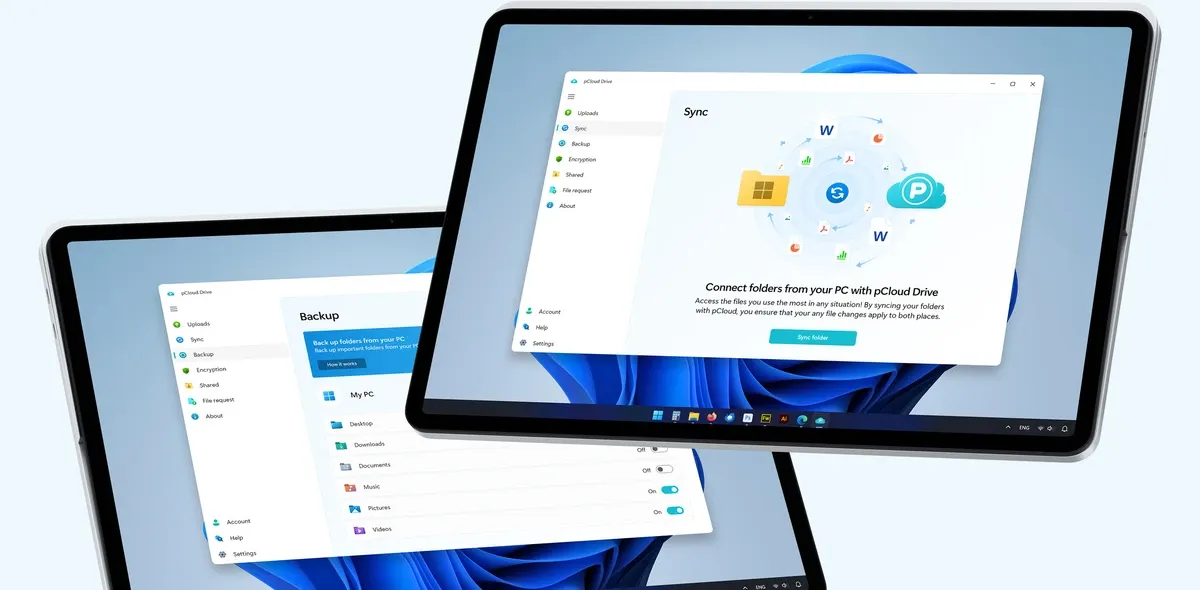
Two more features in the same app do the safety work:
- Backup copies folders such as Desktop, Documents, Pictures and Videos to pCloud and keeps them updated. If the laptop dies, those folders are safe.
- Sync links a folder on your computer to a folder in pCloud, so changes on one side appear on the other. I use it for active work folders I want on both my laptop and phone.
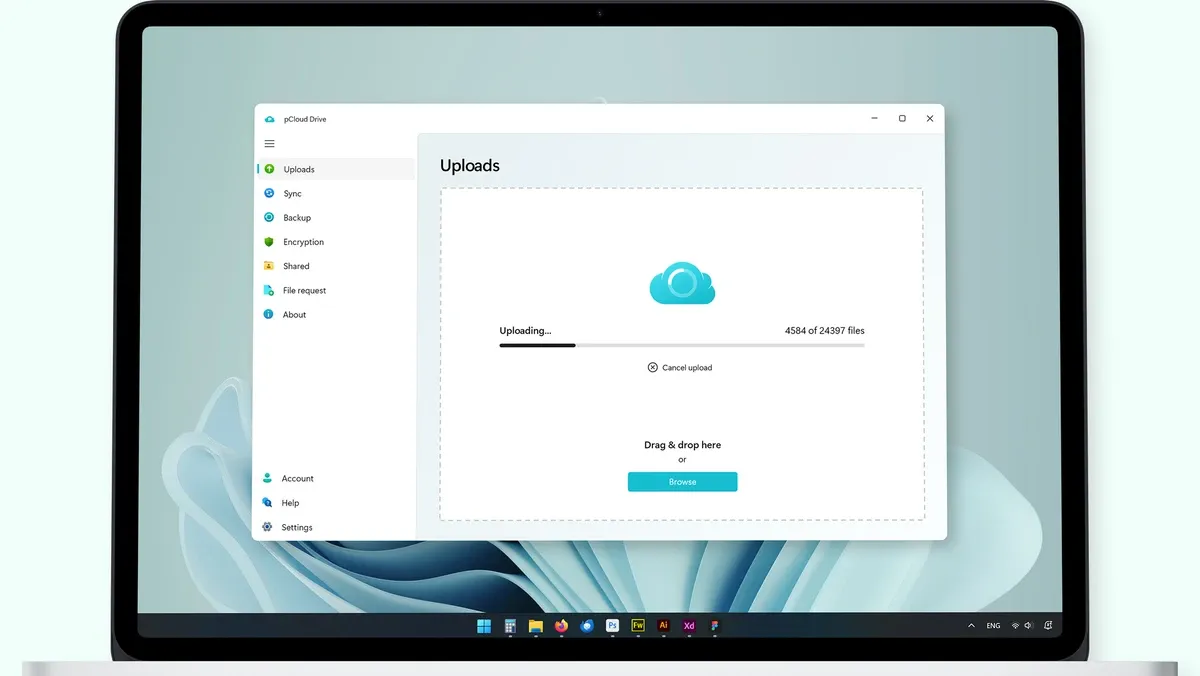
- Uploads handles big batches. Drag in a folder of 20,000 files and let it run.
Use case 5: Private business data with pCloud Encryption
Some files need more than a password on your account: contracts, invoices, ID scans, tax papers, a client's customer list. For these, pCloud offers pCloud Encryption. Files in your encrypted folder are encrypted on your own device before they upload, with a key only you hold. pCloud calls this zero-knowledge, meaning pCloud itself cannot open them.
Two honest notes. First, Encryption is a separate product, not part of the 500 GB, 2 TB or 10 TB plans. The easiest way to get it on Black Friday is the 3in1 Bundle, which includes 3 TB of storage, pCloud Encryption and pCloud Pass Premium (pCloud's password manager). Second, because only you hold the key, a forgotten Encryption password cannot be reset by pCloud. Write it down somewhere safe.
pCloud is a Swiss company, and when you sign up you choose whether your data is stored in the United States or in Europe.
Use case 6: Family photos and friends with full phones
Every few months a friend tells me their phone is full, or their parents' phone is. Over the years several of them have bought the pCloud lifetime plan on my suggestion, and it is the one tech deal I am comfortable telling friends about, because I know exactly how it has worked for me.
A shared folder also works well for families. Invite someone (a free pCloud account is enough) to a folder for wedding or holiday photos, and everyone can add their pictures to one place instead of sending them one by one in a WhatsApp group.
If you know someone with the same problem, feel free to send them this post.
pCloud lifetime plans and prices
These are pCloud's Black Friday lifetime prices, checked on 20 November 2026. All are one-time payments in US dollars. When the sale ends they go back to the regular prices in the third column, so it pays to decide before then.
| Plan | Black Friday price | Regular price | Storage | Shared link traffic | Encryption and Pass |
|---|---|---|---|---|---|
| Premium 500 GB | $159 | $279 | 500 GB | 1,000 GB a month | Not included |
| Premium Plus 2 TB | $379 | $709 | 2 TB | 4 TB a month | Not included |
| Ultra 10 TB | $1,099 | $2,799 | 10 TB | 20 TB a month | Not included |
| 3in1 Bundle | $579 | $1,517 | 3 TB | 6 TB a month | Both included |
All plans include pCloud Photos and pCloud Docs. Check the final price on pCloud's checkout page before you pay.
Which plan should you pick?
- 500 GB ($159): your phone is full and you want your photos and videos safe. This is where I started, and it is enough for most people's personal files.
- 2 TB ($379): freelancers, photographers, small businesses, or a family sharing one account for photos. Also the plan I would pick if you shoot a lot of 4K video.
- 3in1 Bundle ($579): you handle contracts, ID documents or client data and want Encryption, plus a password manager. 3 TB for less than double the 2 TB price.
- 10 TB ($1,099): video creators, agencies and anyone archiving years of raw files.
Lifetime vs monthly: the maths
Monthly cloud plans look cheap because the price is small. The total is not. A 2 TB plan from the big providers costs around $10 a month in the US, which is about $120 a year.
The pCloud 2 TB lifetime plan at $379 costs about the same as three years and two months of that. Everything after that is free. I bought in 2021, so for me the plan paid for itself a long time ago. The 500 GB plan at $159 works the same way against smaller monthly plans.
What to know before you buy
- "Lifetime" means the lifetime of your account and of pCloud. No company lasts forever. pCloud has been running since 2013, and my own lifetime plan has worked without a problem since 2021. I still keep a second copy of anything I cannot lose, which is good practice with any cloud.
- Encryption is extra unless you buy the 3in1 Bundle, as explained above.
- The first upload takes time. Hundreds of gigabytes over a home connection can take days. Start it, let it run overnight, and it only uploads changes after that.
- You can test it. pCloud offers a 14-day money-back guarantee, so upload your own photos, try the apps and decide.
That is my honest take after five years. If your phone or laptop keeps running out of space, or you deal with large client files like I do, fix it once with a lifetime plan, and get it before Black Friday ends, while it is $120 off the regular price. And if you need a hand with your website itself, get in touch.
Questions we get asked
My phone storage is full. Is this Black Friday deal a good time to fix it?
Yes. Photos and videos take up most of the space, and the lasting fix is to back them up to cloud storage, then delete them from the phone. With this Black Friday deal, the pCloud 500 GB lifetime plan is $159 instead of $279, so you pay once and never have to delete memories to make space again.
Is the pCloud Black Friday deal really a one-time payment?
Yes. Every plan in this Black Friday deal is a lifetime plan: you pay once and keep the storage for the lifetime of your account, with no monthly or yearly renewal. I paid $122.50 for the 500 GB lifetime plan on Black Friday 2021 and have never paid a renewal since.
How much is each plan on this Black Friday deal?
On this Black Friday deal (checked 20 November 2026) it is $159 for 500 GB, $379 for 2 TB, $1,099 for 10 TB and $579 for the 3in1 Bundle with 3 TB, pCloud Encryption and pCloud Pass Premium. When the sale ends they go back to $279, $709, $2,799 and $1,517. All are one-time payments in US dollars.
Which plan should I pick on this Black Friday deal?
If your phone is full and you mainly need your photos and videos safe, the 500 GB plan at $159 is enough for most people. That is where I started. Pick 2 TB at $379 for client work, 4K video or a family sharing one account, and the 3in1 Bundle at $579 if you also want Encryption and a password manager.
Is pCloud Encryption included in the Black Friday deal?
Only in the 3in1 Bundle. pCloud Encryption, the zero-knowledge encrypted folder, is a separate product and is not part of the 500 GB, 2 TB or 10 TB plans. The bundle includes it along with 3 TB of storage and pCloud Pass Premium for $579 on this Black Friday deal, instead of $1,517.
Can I keep website backups and client files on the Black Friday plan?
Yes, any plan works for that. I keep copies of important website backups in pCloud, a folder per client, so there is always a copy away from the hosting server. Clients send me files through Request files upload links, without making an account, at full quality.
What if I buy on this Black Friday deal and pCloud does not suit me?
pCloud offers a 14-day money-back guarantee, so you can lock in the Black Friday price now, upload your own files, try the apps and ask for a refund within that window if it is not right for you.


